> ## Documentation Index
> Fetch the complete documentation index at: https://docs.yasu.cloud/llms.txt
> Use this file to discover all available pages before exploring further.
# Quickstart
> Get started with Yasu and start saving on cloud costs in minutes
## Get started in five steps
Connect your cloud accounts and start receiving cost-saving insights right away.
Sign up for Yasu at [app.yasu.cloud/auth/sign-up](https://app.yasu.cloud/auth/sign-up).
You can sign up with your email or use Google/GitHub SSO for faster onboarding.
After signing up, you'll be prompted to create your first **workspace**. A workspace is where your team collaborates on cloud cost optimization.
Select your cloud provider to start analyzing your costs.
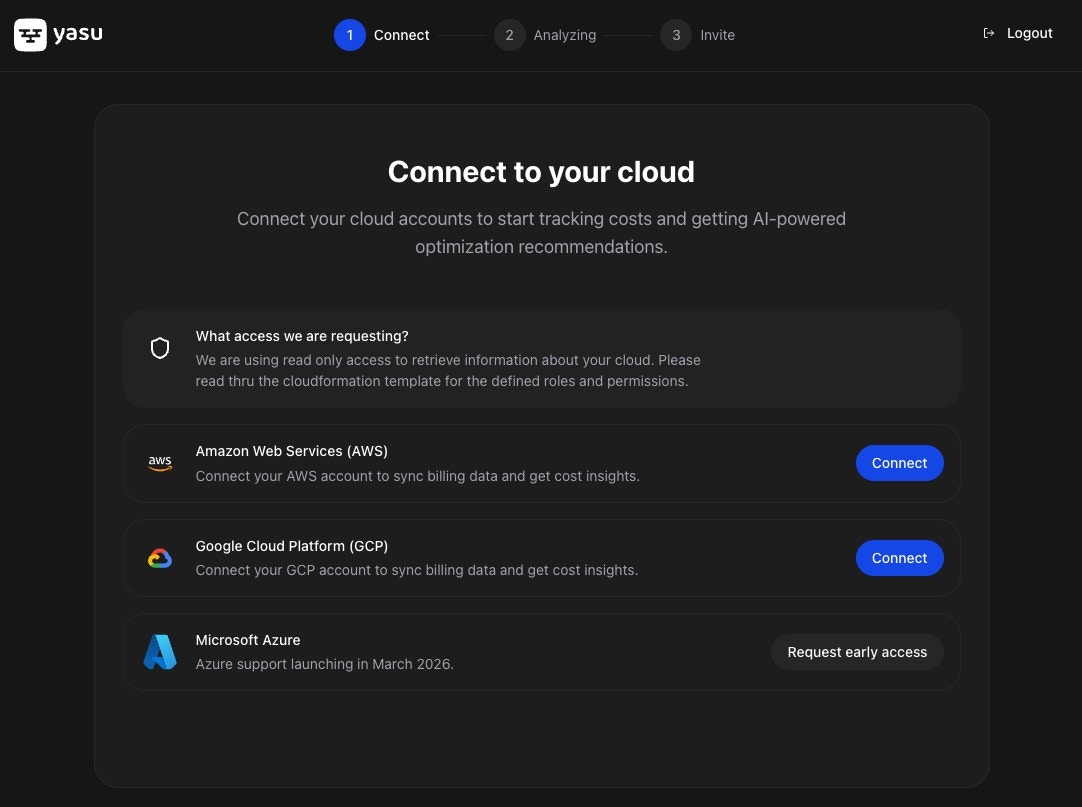 **Connect AWS via CloudFormation**
Click **Connect AWS** and you'll be redirected to AWS CloudFormation with our template pre-loaded.
**Connect AWS via CloudFormation**
Click **Connect AWS** and you'll be redirected to AWS CloudFormation with our template pre-loaded.
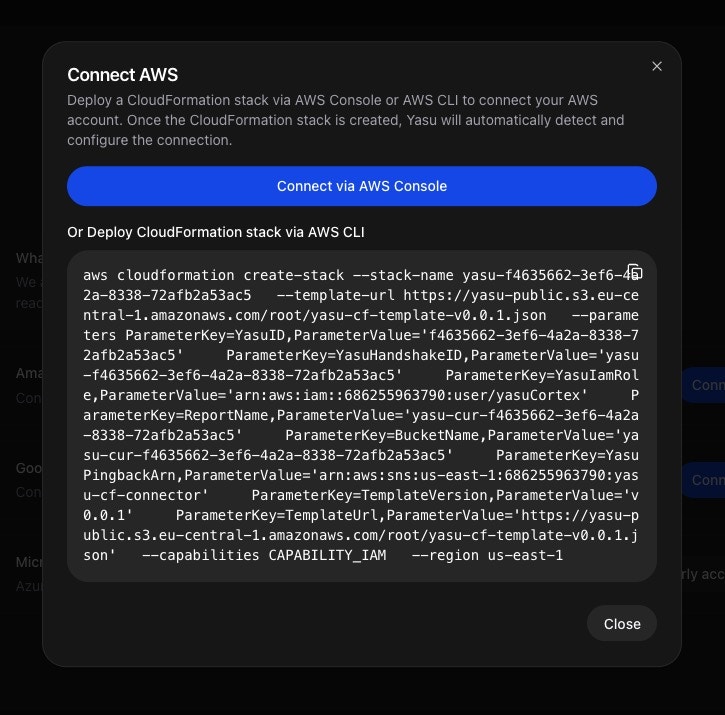 1. Review the stack name and parameters (pre-filled for you)
2. Scroll to the bottom and check the acknowledgment box
3. Click **Create Stack**
Yasu uses **read-only access** to analyze your AWS costs and resources. We never make changes to your infrastructure.
**Verify the connection**
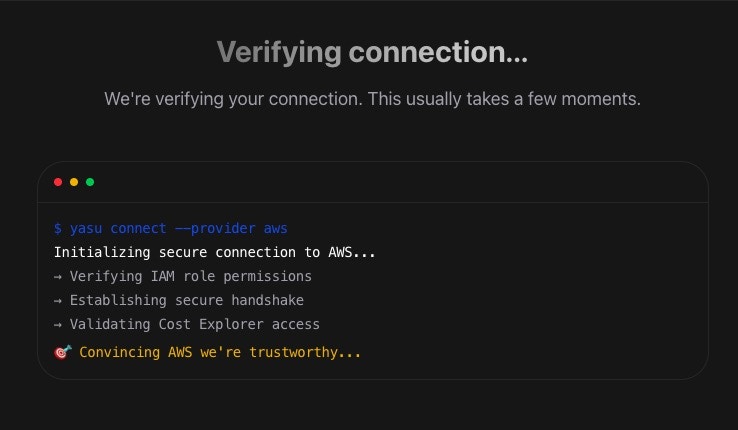
Once the CloudFormation stack completes, Yasu automatically detects the connection. You'll see the verification screen:
1. Review the stack name and parameters (pre-filled for you)
2. Scroll to the bottom and check the acknowledgment box
3. Click **Create Stack**
Yasu uses **read-only access** to analyze your AWS costs and resources. We never make changes to your infrastructure.
**Verify the connection**
Once the CloudFormation stack completes, Yasu automatically detects the connection. You'll see the verification screen:
 The CloudFormation template creates an IAM role with permissions to:
* Read Cost Explorer data
* List resources across services
* Access CloudWatch metrics
**Connect GCP via OAuth**
Click **Connect GCP** to start the OAuth flow.
The CloudFormation template creates an IAM role with permissions to:
* Read Cost Explorer data
* List resources across services
* Access CloudWatch metrics
**Connect GCP via OAuth**
Click **Connect GCP** to start the OAuth flow.
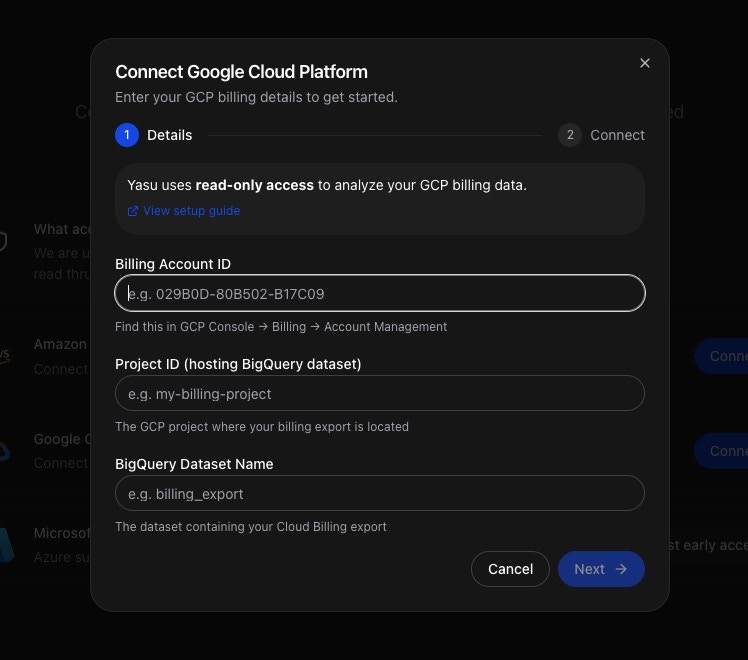 1. Sign in with your Google account that has access to the GCP project
2. Select the project(s) you want to connect
3. Grant the required permissions
Yasu requests **read-only access** to your GCP billing and resource data. We never make changes to your infrastructure.
Yasu will request access to:
* Billing account data
* Project resource information
* Compute and storage metrics
**Connect Azure via Service Principal**
Click **Connect Azure** and follow the step-by-step dialog.
1. **Create a Service Principal** — Copy the Azure CLI command from the dialog and run it in Azure Cloud Shell
2. **Assign roles** — Run the three role assignment commands (Reader, Cost Management Reader, Advisor Reviews Reader)
3. **Enter credentials** — Paste your Tenant ID, App ID, and Client Secret into the dialog
Yasu uses a **read-only** Service Principal. We cannot modify, create, or delete any Azure resources.
The Service Principal is granted:
* **Reader** — Read access to subscription resources
* **Cost Management Reader** — Access to cost and billing data
* **Advisor Reviews Reader** — Access to Azure Advisor recommendations
For detailed instructions, see the [Azure connection guide](/guides/connect-azure).
After connecting your cloud account, configure which AI agents you want to activate. These agents continuously analyze your infrastructure for cost-saving opportunities.
1. Sign in with your Google account that has access to the GCP project
2. Select the project(s) you want to connect
3. Grant the required permissions
Yasu requests **read-only access** to your GCP billing and resource data. We never make changes to your infrastructure.
Yasu will request access to:
* Billing account data
* Project resource information
* Compute and storage metrics
**Connect Azure via Service Principal**
Click **Connect Azure** and follow the step-by-step dialog.
1. **Create a Service Principal** — Copy the Azure CLI command from the dialog and run it in Azure Cloud Shell
2. **Assign roles** — Run the three role assignment commands (Reader, Cost Management Reader, Advisor Reviews Reader)
3. **Enter credentials** — Paste your Tenant ID, App ID, and Client Secret into the dialog
Yasu uses a **read-only** Service Principal. We cannot modify, create, or delete any Azure resources.
The Service Principal is granted:
* **Reader** — Read access to subscription resources
* **Cost Management Reader** — Access to cost and billing data
* **Advisor Reviews Reader** — Access to Azure Advisor recommendations
For detailed instructions, see the [Azure connection guide](/guides/connect-azure).
After connecting your cloud account, configure which AI agents you want to activate. These agents continuously analyze your infrastructure for cost-saving opportunities.
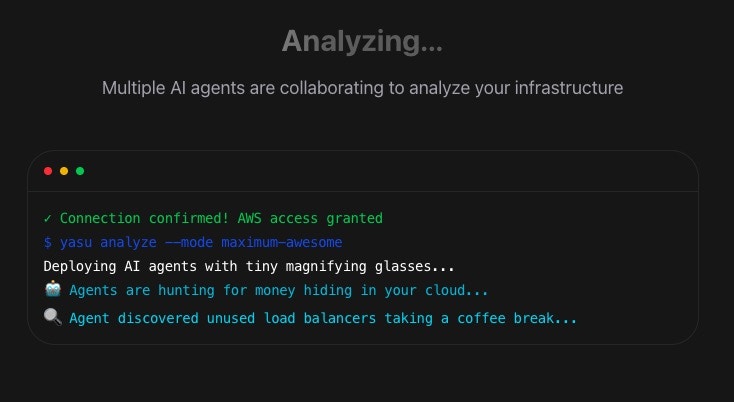 Select the agents that match your optimization goals:
* **Cost Analyzer** — Identifies idle and underutilized resources
* **Right-Sizing Agent** — Recommends optimal instance sizes
* **Reserved Instance Advisor** — Finds RI and Savings Plan opportunities
You can enable or disable agents at any time from Settings.
Collaborate with your team by inviting members to your workspace.
Select the agents that match your optimization goals:
* **Cost Analyzer** — Identifies idle and underutilized resources
* **Right-Sizing Agent** — Recommends optimal instance sizes
* **Reserved Instance Advisor** — Finds RI and Savings Plan opportunities
You can enable or disable agents at any time from Settings.
Collaborate with your team by inviting members to your workspace.
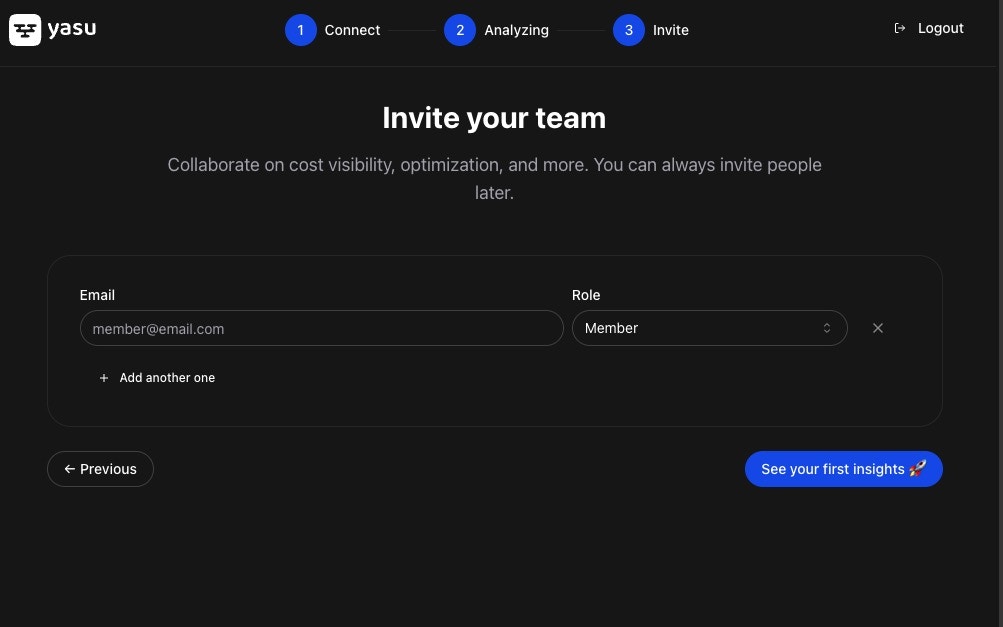 Enter email addresses of team members you want to invite. They'll receive an invitation to join your Yasu workspace.
You can manage team members and permissions later from **Settings** → **Members**.
Once setup is complete, you'll land on your dashboard where cost-saving insights start appearing.
Enter email addresses of team members you want to invite. They'll receive an invitation to join your Yasu workspace.
You can manage team members and permissions later from **Settings** → **Members**.
Once setup is complete, you'll land on your dashboard where cost-saving insights start appearing.
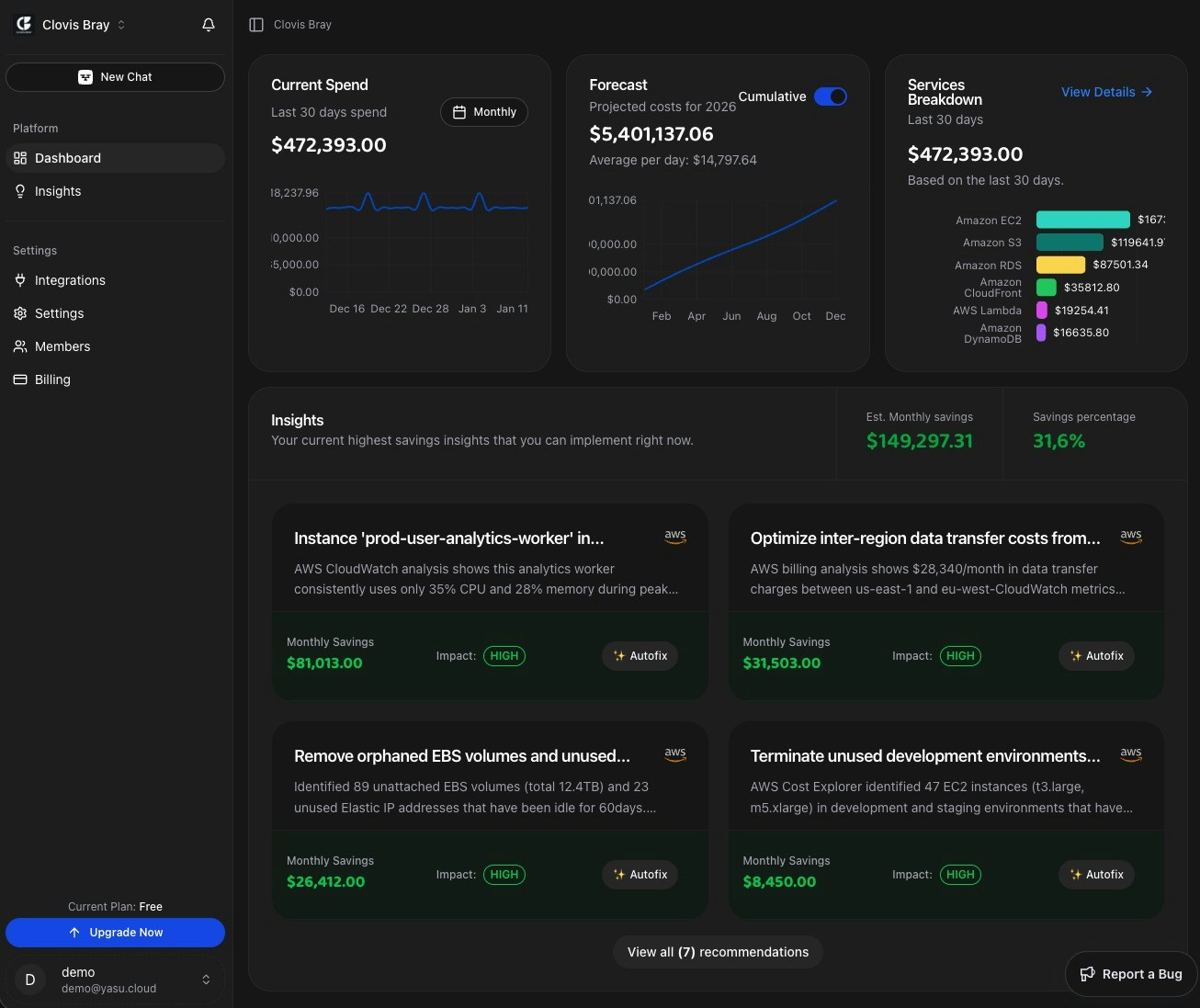 Your dashboard shows:
* **Current spend** — Real-time cloud cost tracking
* **Quick Wins** — AI-powered savings recommendations
* **Forecast** — Predicted costs for the coming month
* **Services breakdown** — Costs by cloud service
Most users see their first cost-saving recommendations within **5 minutes** of connecting.
## Next steps
Understand your cost breakdown and spending trends.
See AI-powered recommendations and implement savings.
Catch costly mistakes before they reach production.
Get notifications about savings opportunities in Slack.
**Need help?** Contact us at [support@yasu.cloud](mailto:support@yasu.cloud) or use the chat widget in the app.
Your dashboard shows:
* **Current spend** — Real-time cloud cost tracking
* **Quick Wins** — AI-powered savings recommendations
* **Forecast** — Predicted costs for the coming month
* **Services breakdown** — Costs by cloud service
Most users see their first cost-saving recommendations within **5 minutes** of connecting.
## Next steps
Understand your cost breakdown and spending trends.
See AI-powered recommendations and implement savings.
Catch costly mistakes before they reach production.
Get notifications about savings opportunities in Slack.
**Need help?** Contact us at [support@yasu.cloud](mailto:support@yasu.cloud) or use the chat widget in the app.